Living with your tech · 30 September 2025
Moving everything from Android to your new iPhone, step by step
Contacts, photos, WhatsApp chats, Mobile Money and your number, moved from Android to iPhone in one evening. The order you do things in matters more than anything else.
By iVillage Africa
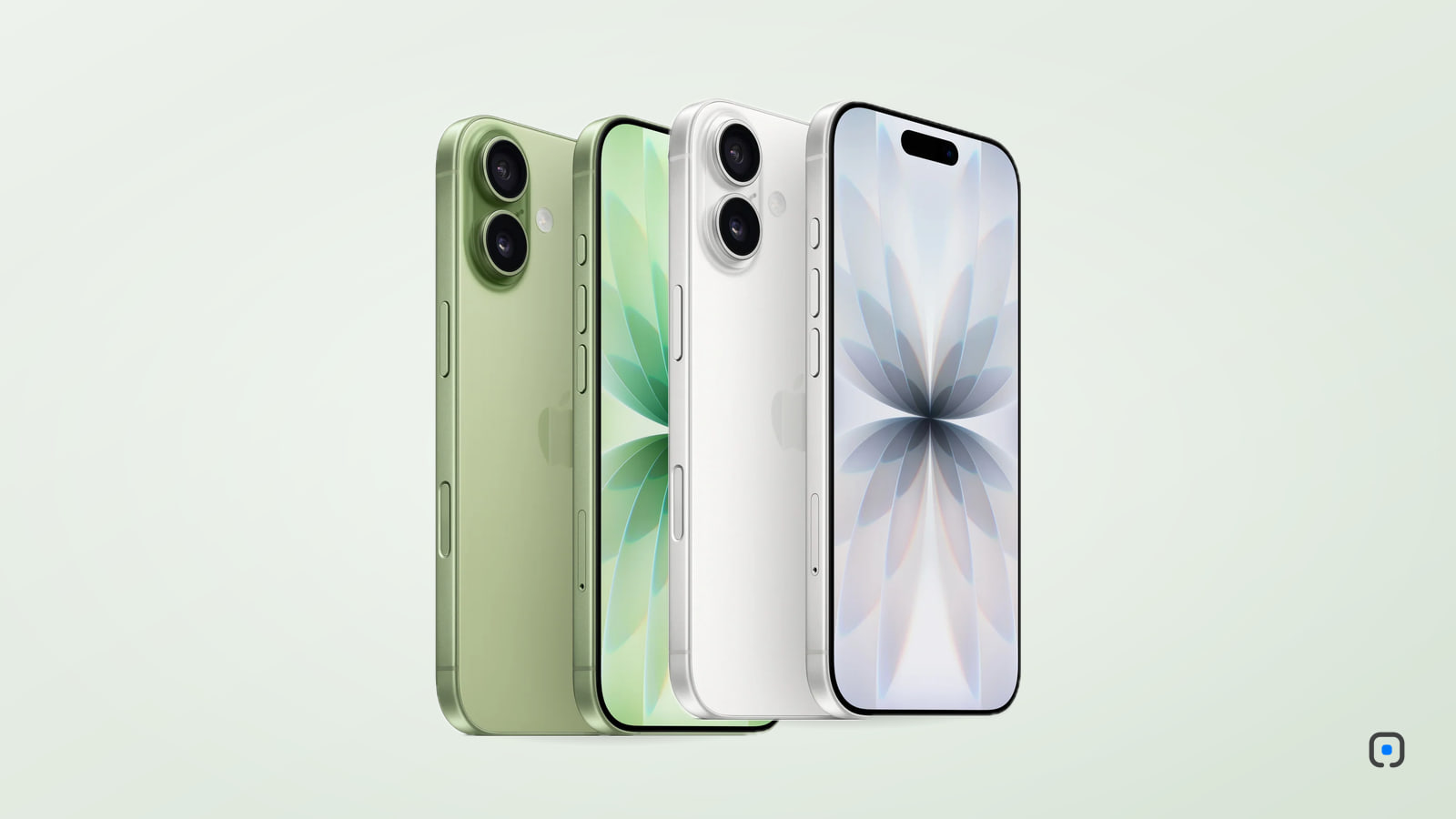
Efua had used Samsung phones for nine years. When she finally bought an iPhone 17, what worried her was not the new layout. It was the eight years of WhatsApp chats with her late grandmother, the voice notes she still played some evenings. She put off switching for a month because of them.
She need not have. Moving from Android to iPhone is now mostly one app and one evening, provided you do things in the right order. The single most important rule: do the transfer before you start using the new iPhone. Apple's tool, and WhatsApp's, only work while the iPhone is still at its first setup screens.
Before you start
Give yourself an hour or two, somewhere with steady power and Wi-Fi. A quiet evening at home beats a busy office.
- Charge both phones and keep them plugged in throughout. A transfer that dies halfway because of dumsor has to start again.
- Update WhatsApp on the Android phone to the latest version.
- Install Move to iOS from Google Play on the Android phone. It is Apple's own app.
- Check how much is on the Android phone, under Settings > Storage, and make sure your new iPhone has more space than that.
- Write down your Google account password and any banking app logins you do not know by heart.
Step 1: Start setting up the iPhone
Switch the iPhone on and follow the screens until you reach Transfer Your Apps & Data. Choose From Android. The iPhone shows a code.
Step 2: Connect with Move to iOS
Open Move to iOS on the Android phone, agree to the terms, and enter the code from the iPhone. The iPhone creates a temporary Wi-Fi network and the Android phone joins it. Keep the two phones side by side and do not use the Android phone while it runs.
Step 3: Choose what to move
Move to iOS can bring across:
- contacts and call history;
- text messages;
- camera photos and videos, and photo albums;
- calendars, mail accounts and web bookmarks;
- WhatsApp messages and media;
- some free apps that exist on both stores.
Tick WhatsApp here if you want your chats. Android will then ask you to open WhatsApp and prepare the export: tap Start, wait for it to finish, and it returns you to Move to iOS.
Large photo libraries take a while. Thirty gigabytes can mean an hour or more. Let it run.
Step 4: Finish WhatsApp on the iPhone
When setup completes, install WhatsApp from the App Store. Log in with the same phone number you used on Android. WhatsApp will offer to import the chats that came across; tap Start, and your history, voice notes and photos appear. That is how Efua found her grandmother's messages waiting for her, in the right order, on the first evening.
Two things to know. WhatsApp says the iPhone must be new or freshly reset for this to work. And your chats stay on the Android phone until you delete WhatsApp or wipe the phone, so do not rush to sell it.
Step 5: Photos that did not fit
If your Android photos were in Google Photos, they are still there. Install Google Photos on the iPhone and sign in. You can keep using it, or move everything into iCloud Photos over time. On a data bundle, do this on Wi-Fi; a large library can eat several gigabytes.
Step 6: Mobile Money and banking apps
This is where Ghanaian switchers most often get stuck, and the answer is simple: you set these up again. Nothing moves across.
- Download the MTN MoMo app, Telecel Cash or AT Money app, and your bank's app, from the App Store.
- Sign in with your number, and verify with the OTP code and your PIN. Your wallet balance lives with your network, not on the phone, so nothing is lost.
- Many banking apps tie themselves to one device. Expect to re-register, answer security questions or approve the new phone from your old one or by calling the bank. Do this while you still have the old phone to hand.
- Your USSD codes, such as *170#, work on the iPhone exactly as before.
Step 7: Your number and SIM
If your iPhone takes a SIM card, move the card across and you are done. If it is an eSIM-only iPhone, which includes iPhone Air everywhere and the US versions of iPhone 17 and iPhone 17 Pro, you need your network to issue an eSIM. MTN offers this in the MyMTN app; Telecel and AT do it in store with your Ghana Card. Arrange it before the day you switch, so you are not without your number for MoMo codes.
What does not move
Paid Android apps do not carry over, since Google Play and the App Store are separate shops. Ringtones, some widgets and app-specific data stay behind unless the app has its own cloud sign-in. Most apps you use daily, from Bolt to Instagram, simply need you to log in again.
Before you hand the Android on
Once you are sure everything is on the iPhone, remove your Google account from the Android phone, then do a factory reset. That protects your data and whoever uses the phone next.
If your new iPhone came from us, such as an iPhone 17, it arrives sealed and untouched, which is exactly the state this transfer needs.
Comments
No comments yet — be the first.
Sign in to join the conversation. You can comment under your name or anonymously.