Living with your tech · 7 October 2025
Setting up reliable home Wi-Fi with UniFi: a plain-English guide
Why one router in the corner is not enough for a Ghanaian house, and how a UniFi gateway, a few access points and a small switch give you Wi-Fi in every room.
By iVillage Africa
Efua's house in East Legon has everything a family could want, except Wi-Fi in the kitchen. The router the internet provider installed sits in the living room, in a cabinet under the TV. Upstairs, the children's video lessons stutter. In the boys' quarters, the signal is a rumour. She has bought two plug-in extenders. Each one made things slightly different, not better.
Her problem is not the internet line. It is the building. Ghanaian houses are built from concrete block, often with reinforced slabs between floors, and Wi-Fi does not pass through them well. One box in one corner cannot cover a house like that. The answer is to spread the Wi-Fi out, and that is what UniFi is designed to do.
The three parts of a UniFi network
UniFi breaks a home network into separate parts, each doing one job well.
The gateway. This is the brain. It connects to your internet line, whether fibre, Starlink or a 5G box, hands out addresses to your devices and runs the firewall. It also runs the UniFi app that you use to manage everything from your phone.
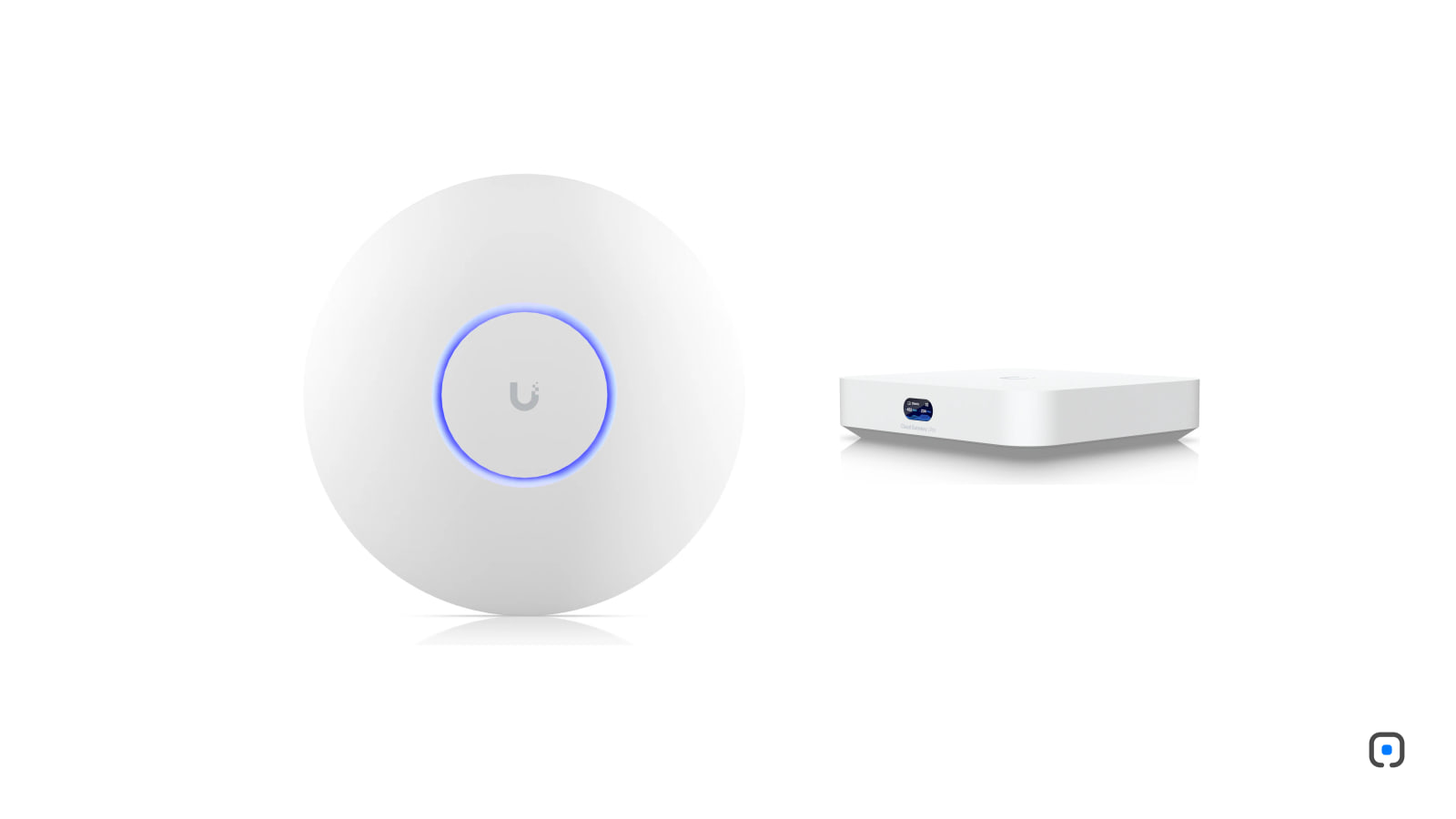
Access points. These are the Wi-Fi radios. They look like smooth white discs and usually go on the ceiling. You place one in each area that needs coverage, and they work together as a single network with a single name. Your phone moves between them as you walk around.
A switch. This is a box with extra network ports. It connects the gateway to access points and wired devices such as a TV, a console or a desktop computer.
The ordinary internet-provider router tries to do all three jobs from one spot. UniFi lets you put each part where it works best.
Choosing a gateway
- UniFi Express 7. A small cube that is both gateway and WiFi 7 access point, with a 10G internet port. For a flat or a compact house, it may be all you need, and you can add access points later.
- UniFi Dream Router 7. Also a gateway with built-in WiFi 7, plus extra 2.5G ports, one of which can power an access point, and a microSD card slot for recording UniFi cameras. A good centre for a family home.
- UniFi Cloud Gateway Ultra. A compact gateway with no Wi-Fi of its own, meant to be paired with access points. Sensible when you want every radio placed exactly where it is needed.
- UniFi Cloud Gateway Max. A step up, with 2.5G ports throughout and optional storage for cameras. For larger homes and small offices.
Choosing access points
All of the access points we mention here support WiFi 7, the newest Wi-Fi standard, which allows faster speeds and handles many devices at once more gracefully. Your older phones and laptops still connect; they simply use the older standards they know.
- U7 Pro. The most popular choice. It adds the 6 GHz band, a clean, uncrowded lane for newer phones and laptops that support it.
- U7 Lite. Smaller and less expensive, using the 2.4 GHz and 5 GHz bands only. Ideal for bedrooms, a study or the boys' quarters.
A typical two-storey house might use a U7 Pro in the main living area and a U7 Lite on each other floor.
Where to put them
- On the ceiling, near the middle of the area you want to cover. Access points send their signal downwards and outwards, like a lamp.
- Not in cabinets, not behind the TV, not next to the water heater. Metal and water block Wi-Fi.
- One per floor at minimum in a concrete house. Slabs stop signal very effectively.
- Outside rooms count too. If you want Wi-Fi on the veranda or by the pool, plan for it rather than hoping.
Cables or mesh?
UniFi access points can connect back to the gateway in two ways: by an Ethernet cable, or wirelessly, which is called mesh.
A cable is always better. It carries full speed, never drops and also carries power, which we come to below. If the house is being built or renovated, ask the electrician to run network cable to a point on each ceiling at the same time as the lighting. It costs little then and a great deal later.
Mesh is the fallback when a cable is truly impossible. An access point in mesh mode needs only a power socket and receives its connection wirelessly from another access point. It works, but each wireless hop costs speed. Use mesh for the far room, not for the whole house.
PoE: one cable for data and power
Most UniFi access points are powered by PoE, or Power over Ethernet. The same network cable that carries the data also carries electricity, so a ceiling access point needs no socket beside it.
The power comes from a PoE switch or a PoE port on the gateway. The Dream Router 7 has one such port. For more, add a switch. The UniFi Switch Flex Mini is palm-sized, with five ports, and handy for extending wired connections behind a TV. For powering several access points, choose a switch with PoE ports.
A nice side effect: put the gateway and the PoE switch on a small UPS, and every access point in the house stays on through a power cut.
Setting it up
Install the UniFi app, plug in the gateway and follow the prompts. It finds new access points and switches as you connect them. You can see every device on the network, check signal quality room by room, and create a separate guest network so visitors never see your home devices.
Everything we sell is brand-new and sealed with Ubiquiti's manufacturer's warranty, and we help with any claim. Start with the gateway and one access point where the signal is worst; you can always add another ceiling disc later.
Comments
No comments yet — be the first.
Sign in to join the conversation. You can comment under your name or anonymously.